 Poole Gang
Tutorial: running a poole from start to finish
One complete poole, step by step, with a screenshot of every screen. jpk is the originator (the person who creates and runs it) and bob is a member who takes a spot.
Contents
- Creating the poole (originator)
- Sharing it (originator)
- Taking a spot and paying (member)
- Confirming the money (originator)
- Locking and the result (originator)
- Paying out (originator)
- After the result (member)
- Tips and shortcuts
Part 1: creating the poole (originator)
Step 1: click New poole
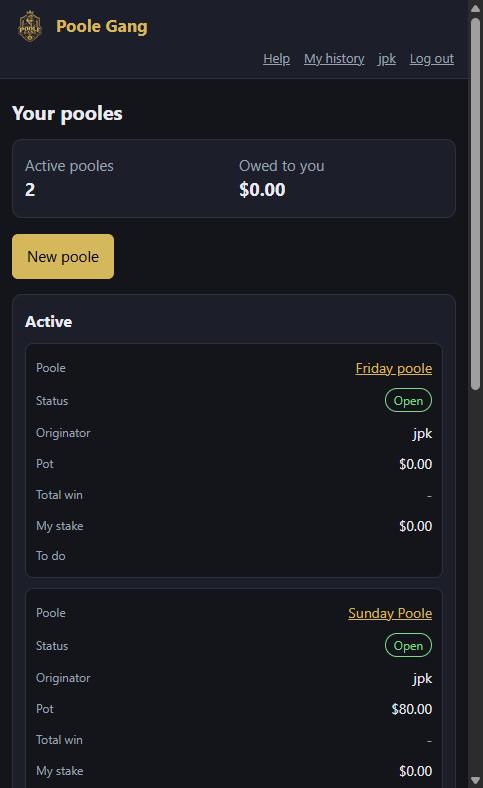
Log in and you land on your dashboard. It shows the pooles you are in, what you are owed, and a New poole button.
Step 2: fill in the basics
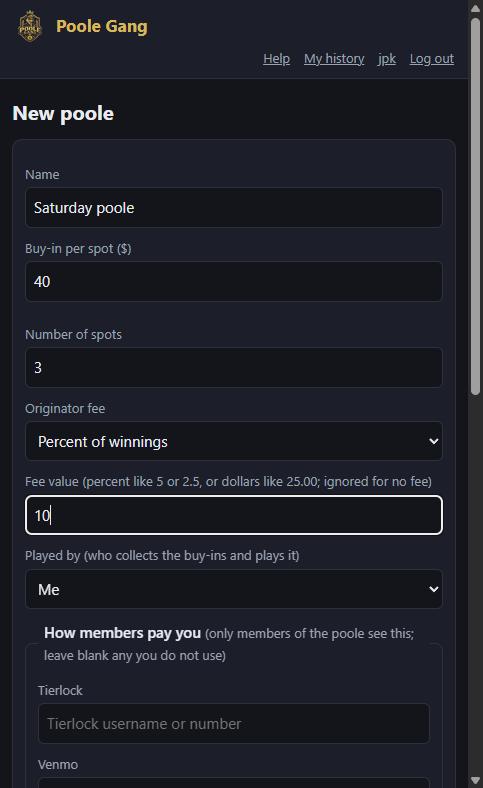
Give the poole a name, set the buy-in per spot and the number of spots, and choose your originator fee: none, a percentage of the winnings, or a flat amount. Here it is $40 a spot, 3 spots, and a 10% fee. Leave Played by on "Me" unless someone else will collect the money (there is a separate guide for that).
Step 3: check how members pay you
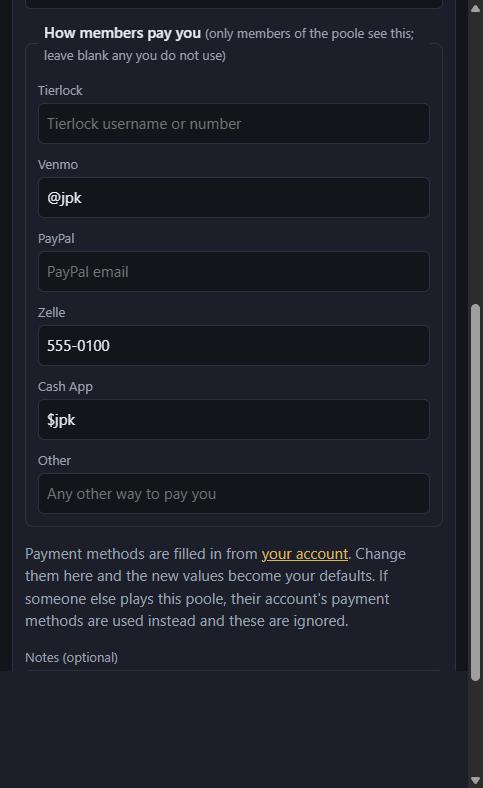
Your payment methods are filled in from your account. Change any of them here if you like; the new values become your defaults for next time. Only members of the poole will see these. Then click Create poole.
Part 2: sharing it (originator)
Step 4: copy the share message
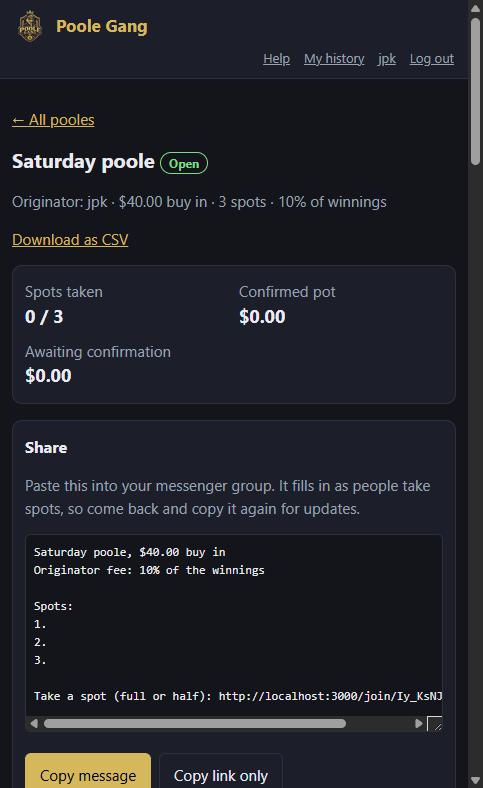
The new poole opens with a Share box: a ready-made message listing the buy-in, the fee, the empty spots and a join link. Click Copy message and paste it into your group chat. It fills in as people take spots and pay, so copy it again whenever you want to post an update.
Step 5: know your controls
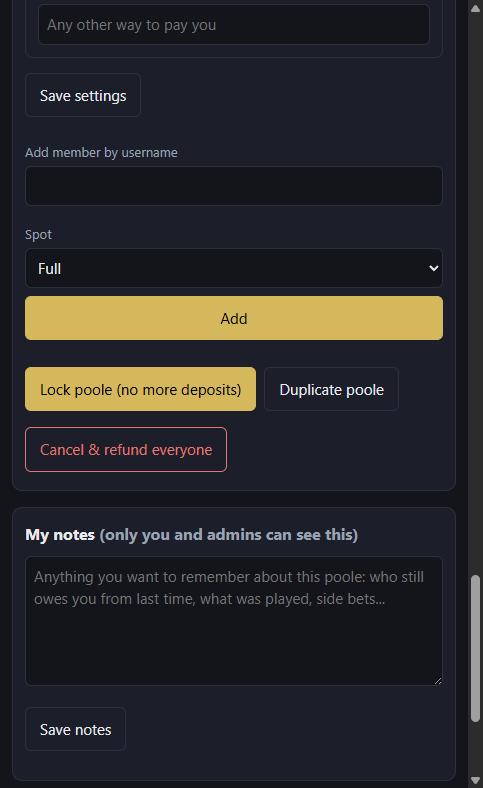
Further down the page, Originator controls lets you change the settings, add a member by username or email (they are emailed to say they have been added; an email with no account gets the join link), lock the poole, duplicate it for next week, or cancel and refund everyone. My notes is a private scratchpad only you can see.
Part 3: taking a spot and paying (member)
Step 6: open the join link
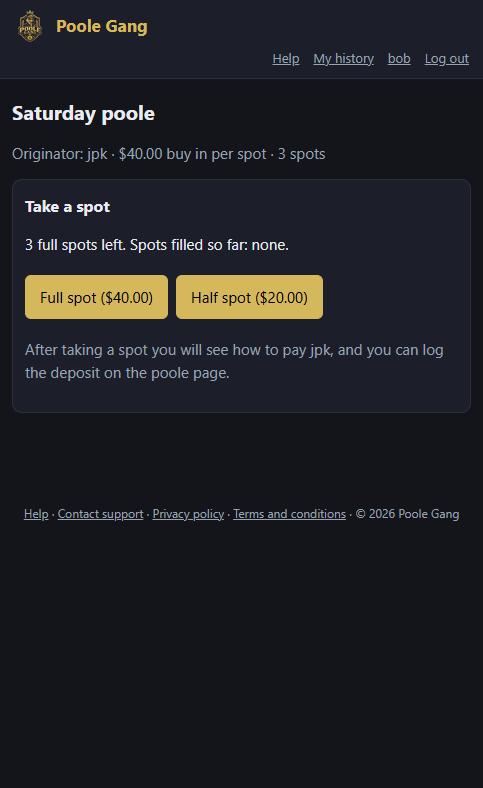
bob taps the link from the group. He sees the poole, how many spots are left, and two buttons: Full spot for the whole buy-in or Half spot for half. Someone without an account yet can sign up straight from this link, no invite code needed.
Step 7: the spot is taken
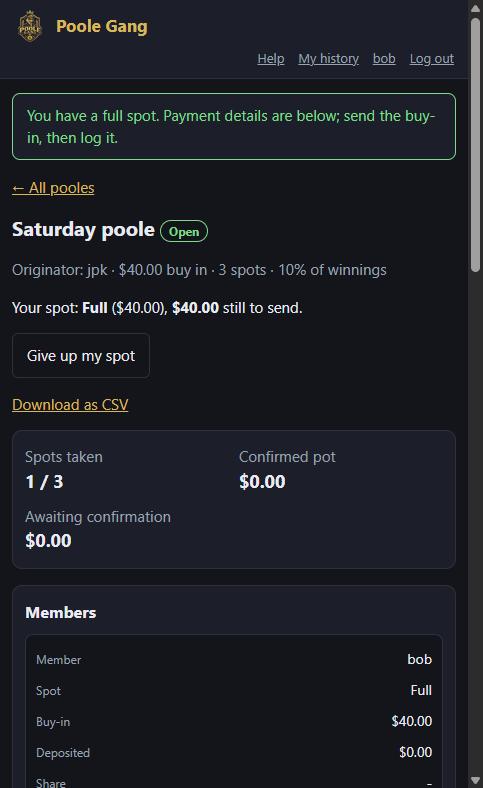
After clicking Full spot, bob is on the poole page. The line Your spot: Full ($40.00), $40.00 still to send tells him what he owes. He can give the spot up with the button underneath, as long as he has not paid yet.
Step 8: pay the originator, then log it
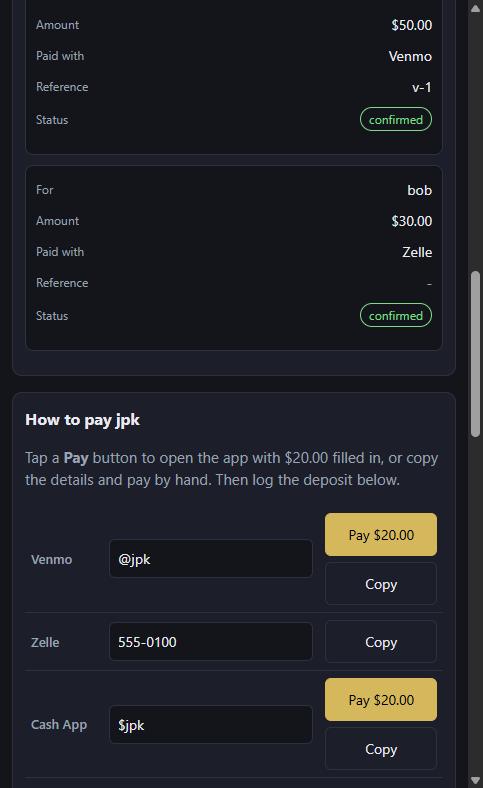
How to pay jpk lists the originator's payment apps. For Venmo, Cash App and PayPal there is a Pay button that opens the app with the amount still owed already filled in; tap it, check the details, and confirm in the app. Zelle and Tierlock have no such link, so for those copy the details into the app and send it by hand.
Once the money is sent, fill in Log a deposit just below: the total sent, which app was used, and an optional reference such as the transaction number. (Paying through the app does not log it for you; the apps cannot tell the site when a payment goes through.)
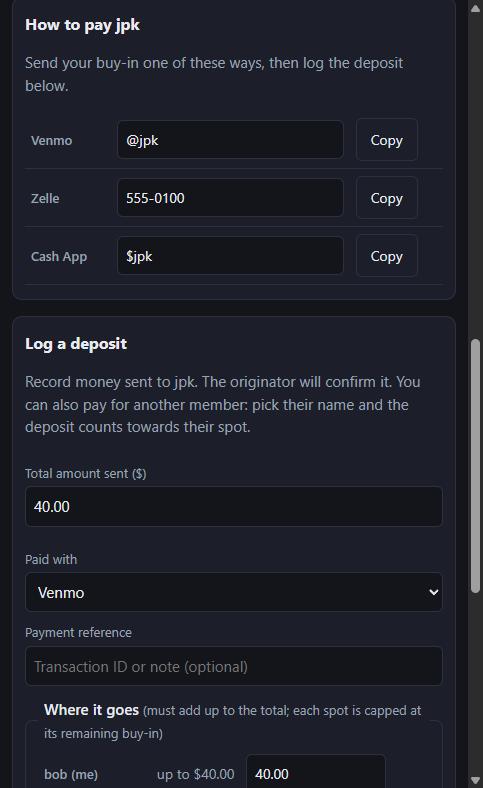
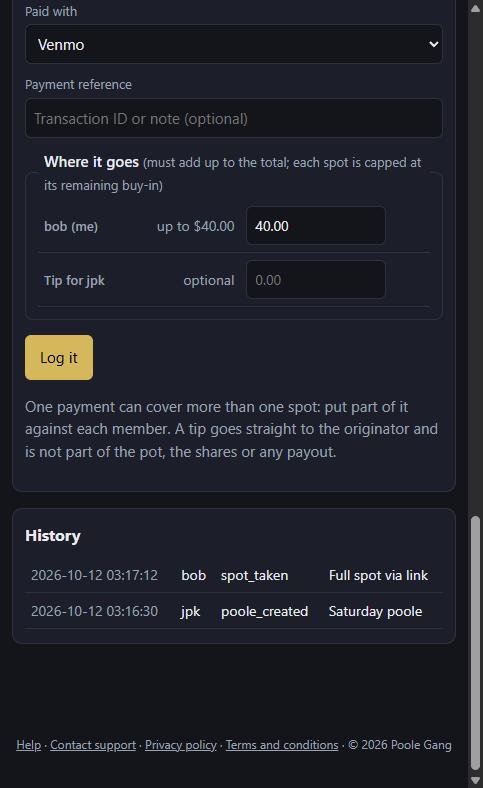
Under Where it goes, his own spot is already filled in with the $40. If he were paying for a friend as well, he would put part of the total against the friend's spot too. The parts must add up to the total. The Tip row is optional extra for the originator and never counts towards the pot. Click Log it.
Step 9: waiting for confirmation
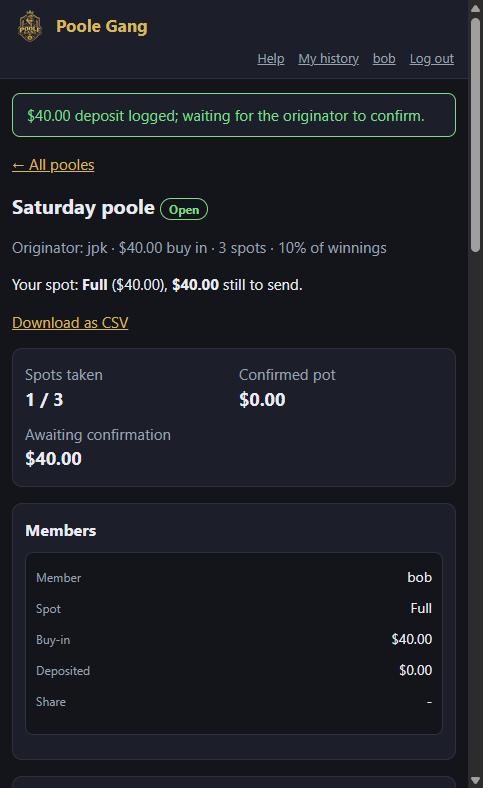
The deposit is logged and shows as pending. It does not count towards the pot until the originator confirms it, so bob's line still says $40 to send and "Awaiting confirmation" shows $40.
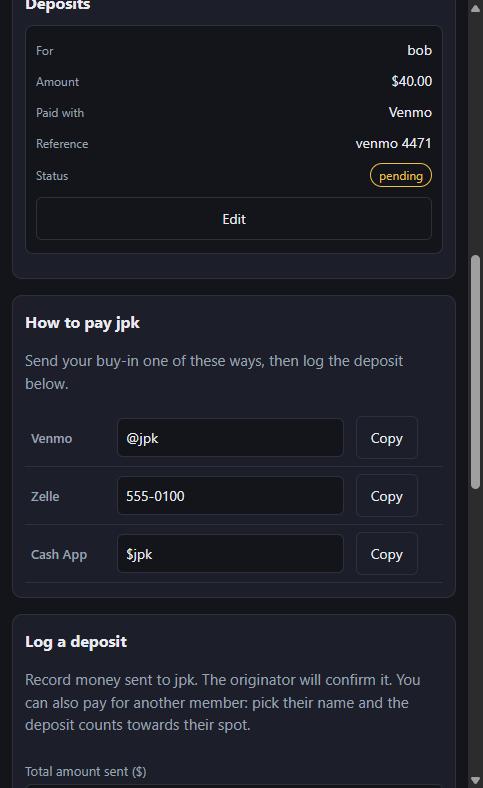
bob can still Edit or delete his deposit while it is pending, for example to fix a typo in the amount.
Part 4: confirming the money (originator)
Step 10: the prompt
Within a few seconds of bob logging his deposit, jpk gets a prompt wherever he is on the site: who, how much, which app, which poole, and the reference. Confirm now if the money is there; Wait for the money if not. Waiting puts a reminder bar across the top of every page and asks again after 30 minutes.
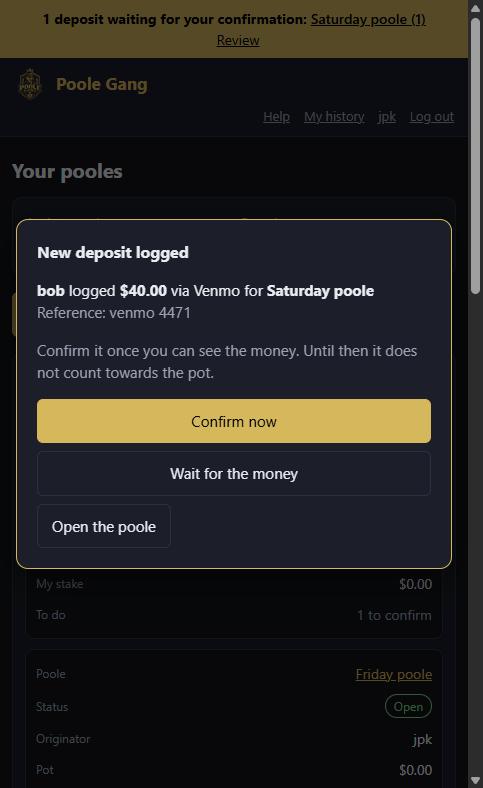
Step 11: see who still owes
Back on the poole page, bob now shows paid. The Payment reminder box lists everyone who has taken a spot but not paid; copy it into the group when you need to chase. (Here jpk has added alice and dave himself with Add member by username.)
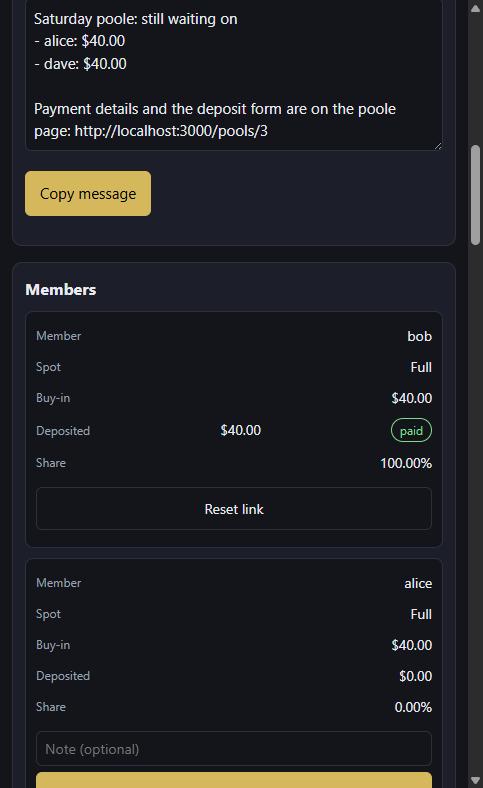
Step 12: record money that arrives another way
When someone pays without logging it themselves, use Mark paid on their row. It records the rest of their buy-in in one click, confirmed straight away, with an optional note. For a different amount, use Record a payment you received instead, where you pick the member and type the amount.
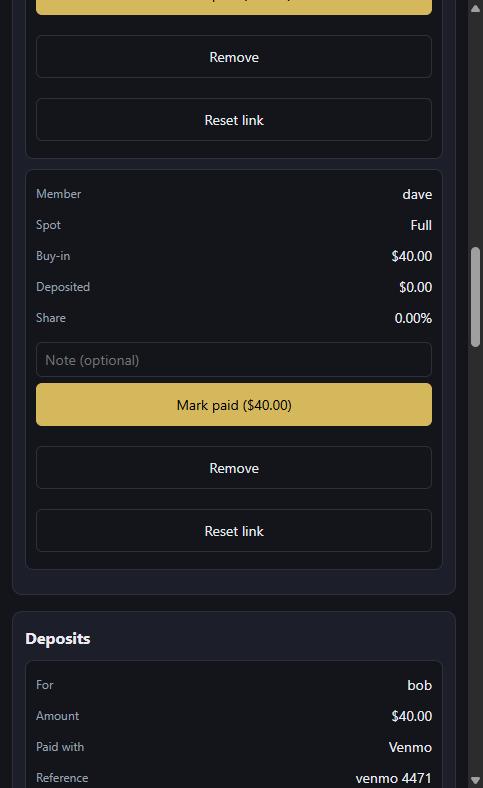
Part 5: locking and the result (originator)
Step 13: it locks itself
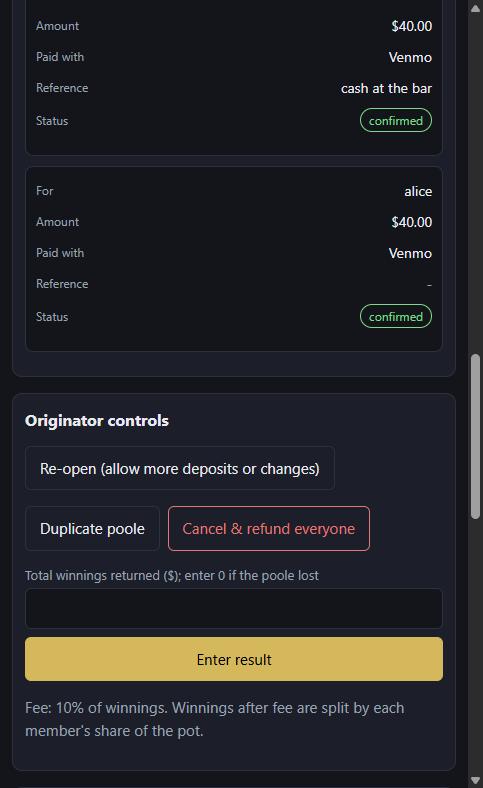
The moment every spot is taken and every buy-in is confirmed, the poole locks itself: no more joining, no more deposits. The badge changes to Locked and the pot shows the full $120. If you need to change something, Re-open, fix it, and it will lock again when complete. You can also lock early with Lock poole if you are going ahead with fewer spots filled.
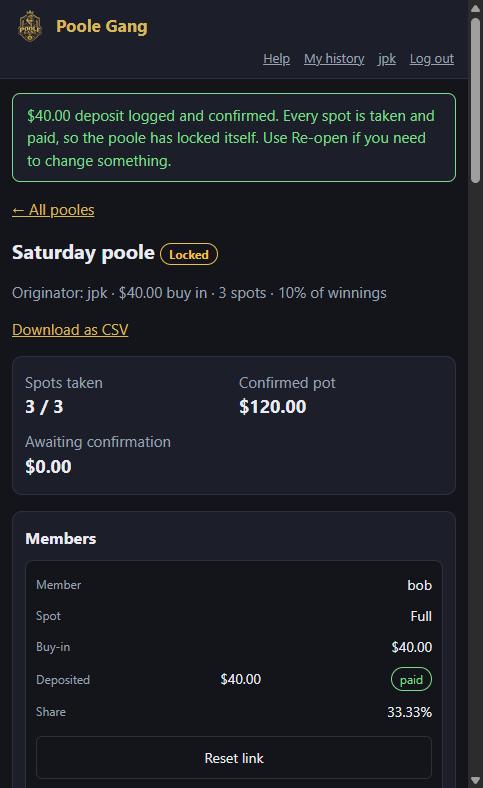
Step 14: enter the result
When you know the outcome, scroll to Originator controls and type the total winnings returned. Enter 0 if the poole lost. Click Enter result.
Step 15: the split
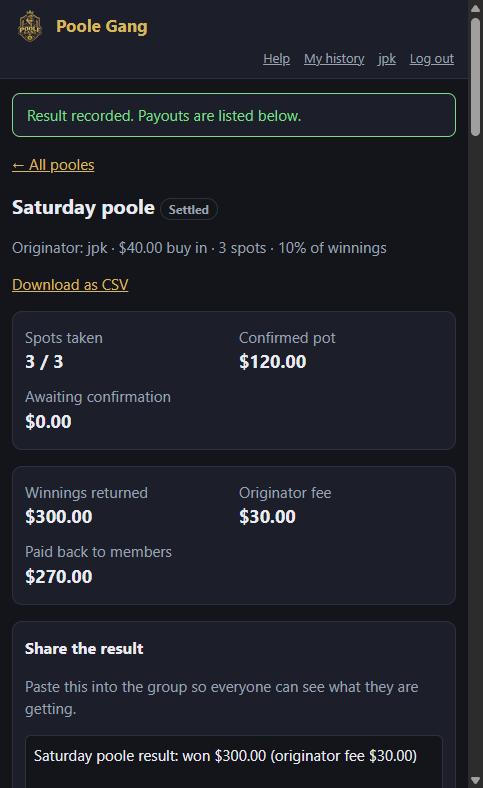
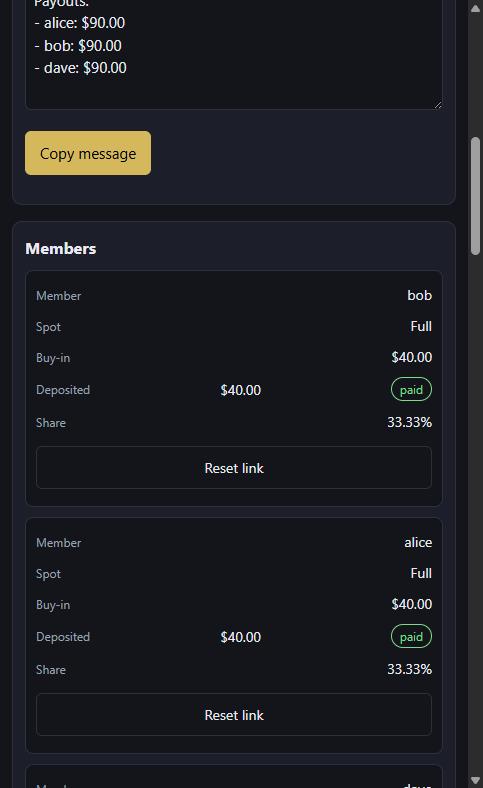
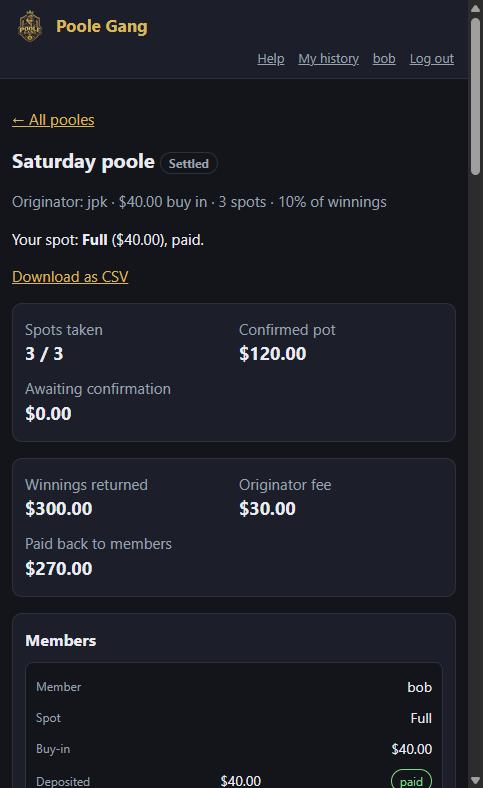
The poole is now Settled. The summary shows the winnings ($300), the originator fee (10% = $30), and what goes back to members ($270). The fee comes off first; the rest is split by each member's share of the pot, to the cent. A half spot earns half of what a full spot earns.
Share the result is a message for the group listing every payout. "(sent)" appears beside each one as you mark them.
Part 6: paying out (originator)
Step 16: send each payout and mark it
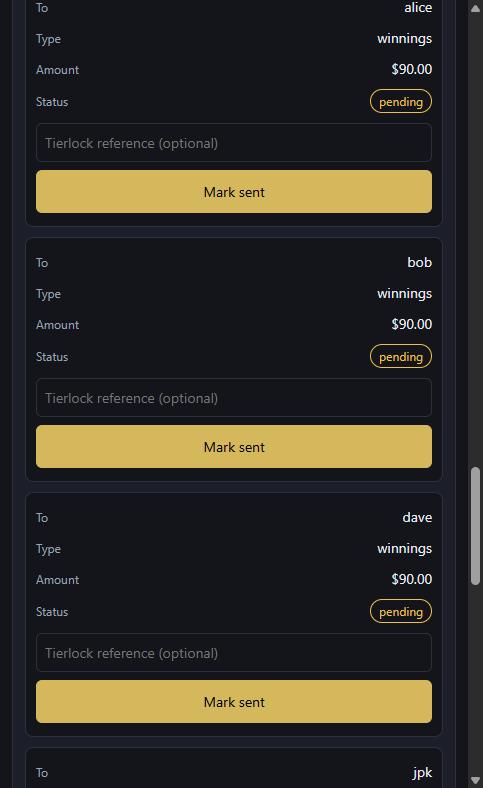
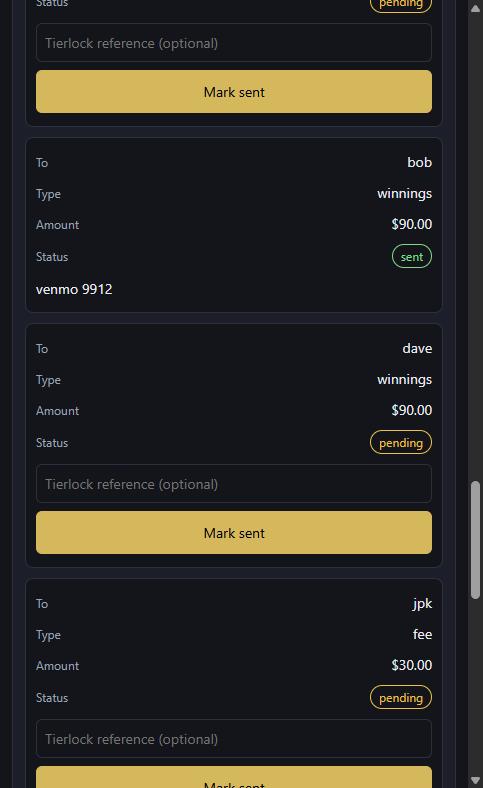
The Payouts list has a row per member, plus one for your fee. Send each amount through whatever app you use, add a reference if you like, and click Mark sent. The dashboard keeps a count of payouts still to send so none get forgotten.
Part 7: after the result (member)
Step 17: what the member sees
bob opens the poole: it is Settled, his spot shows paid, and the summary shows the winnings, the fee and the total paid back. The Payouts list further down shows his $90 marked sent.
Step 18: My history
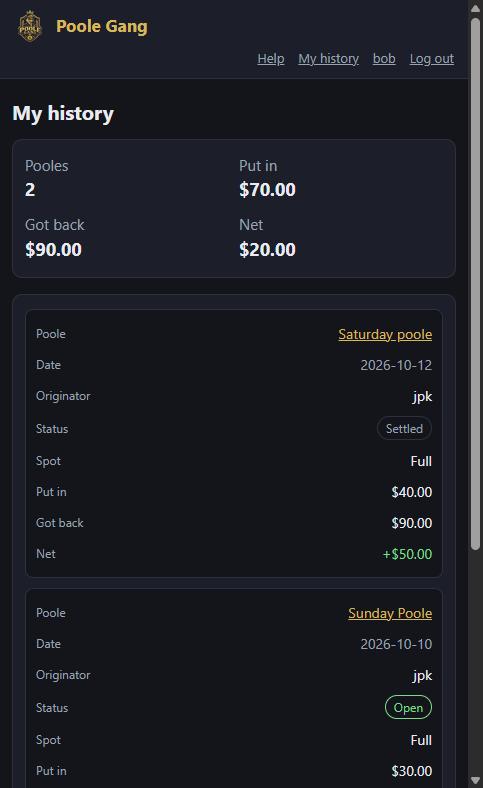
My history in the header adds it all up across every poole: put in, got back, and the net, with a line per poole. Here bob put $40 into Saturday poole and got $90 back, so +$50.
Tips and shortcuts
- Same crew every week? Open last week's poole and click Duplicate poole. Settings, payment methods and members come across; nobody is marked paid.
- Pay buttons use what you still owe, plus the app's fee. Venmo and PayPal add 1.75%, Cash App 2.5%; the button and the deposit form both include it, and the fee is shown separately on your deposit so your spot still counts in full. If you have paid part of your spot, the button fills in the remainder. They disappear once your deposit is logged.
- Pages update by themselves. Leave the poole open on your phone and new spots, deposits and confirmations appear without refreshing.
- Hide old cancelled pooles on the dashboard with the checkbox above All pooles.
- Download as CSV on any poole gives you a spreadsheet for your records.
- Made a mistake? Deposits can be edited or deleted while the poole is open; the history at the bottom of the page records every change.
- Forgot to close one? It locks itself once full and paid, and an administrator can enter a result or cancel it if the originator is away.
- For a poole that someone else plays on your behalf, see the played-by guide.